Timeline
Dated events down a rail or across a snapping strip — how far along, and what kind each one was.
Installation
Timeline ships with the library — install it once, then import:
import { Timeline } from "@delacour/react-native-ui/timeline";Or copy the source into your project, to own and edit it:
bunx delacour@latest add timelineUsage
import { Timeline } from "@/components/ui/timeline";
import { View } from "react-native";

export default function Example() {
  return (
    <View className="flex-1 justify-center p-4">
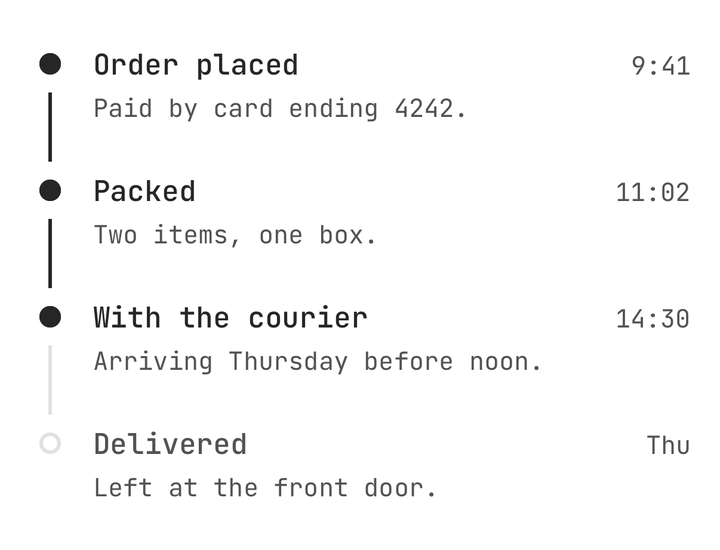
      <Timeline value={2}>
        <Timeline.Item step={0}>
          <Timeline.Header>
            <Timeline.Title>Order placed</Timeline.Title>
            <Timeline.Date>9:41</Timeline.Date>
          </Timeline.Header>
          <Timeline.Description>Paid by card ending 4242.</Timeline.Description>
        </Timeline.Item>
        <Timeline.Item step={1}>
          <Timeline.Title>Packed</Timeline.Title>
        </Timeline.Item>
        <Timeline.Item step={2}>
          <Timeline.Title>With the courier</Timeline.Title>
        </Timeline.Item>
        <Timeline.Item step={3}>
          <Timeline.Title>Delivered</Timeline.Title>
        </Timeline.Item>
      </Timeline>
    </View>
  );
}
Progress and tone
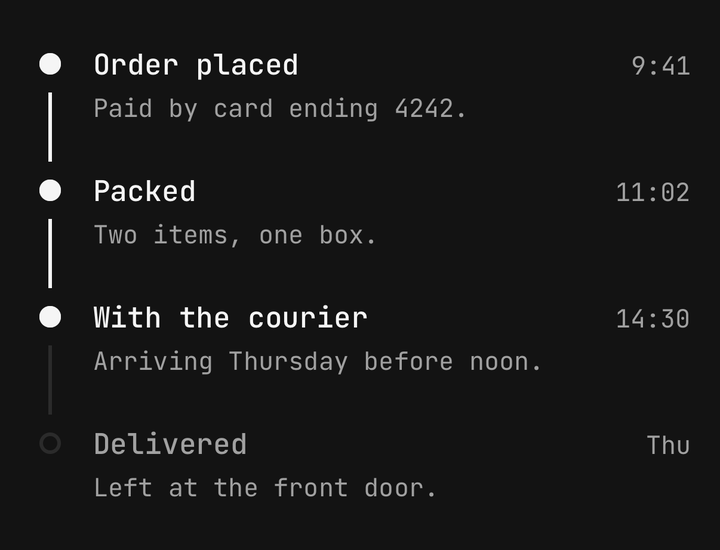
One zero-based value says how far along the sequence is: events before it are completed, the one
at it is current, and the ones after it are upcoming. The rail fills off that value alone, so it is
never half drawn between two events. The default value is -1 — nothing has happened yet.
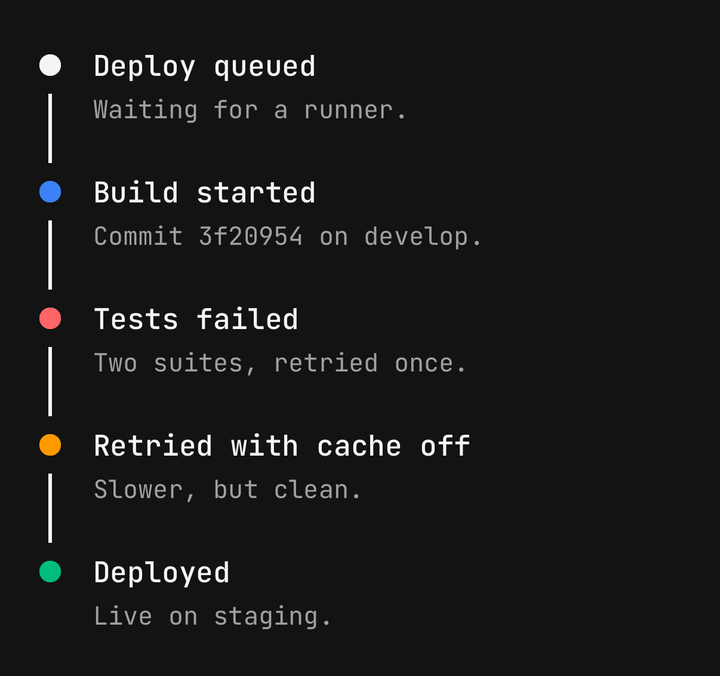
tone says what kind an event was — info, success, warning or destructive — and tints its
marker whatever its progress. A failed step stays red after the sequence moves past it; how far
along things are is the rail's job, not the marker's.
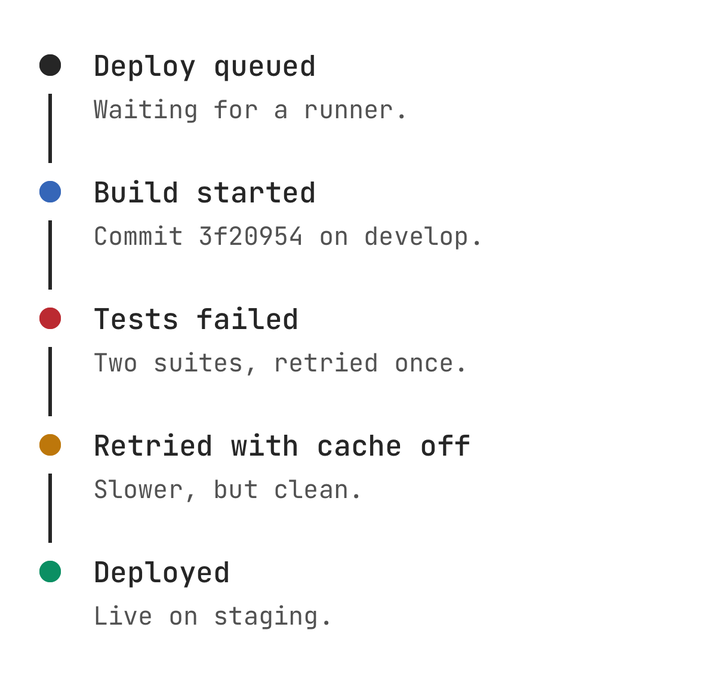
<Timeline value={4}>
  <Timeline.Item step={0}>…</Timeline.Item>
  <Timeline.Item step={1} tone="info">…</Timeline.Item>
  <Timeline.Item step={2} tone="destructive">…</Timeline.Item>
  <Timeline.Item step={3} tone="warning">…</Timeline.Item>
  <Timeline.Item step={4} tone="success">…</Timeline.Item>
</Timeline>
isCompleted overrides a single event: true completes it wherever it sits, false un-completes a
passed one but never demotes the current event.
Variants
| Variant | Marker |
|---|---|
dot | A small dot, level with the title's first line. The default |
icon | A circle holding the glyph you write into Timeline.Indicator — a check once completed when none is given |
numbered | A circle holding the event's position |
card | A dot beside content set on a surface — wrap the content in Timeline.Content |
compact | A dot, with half the gap between events |
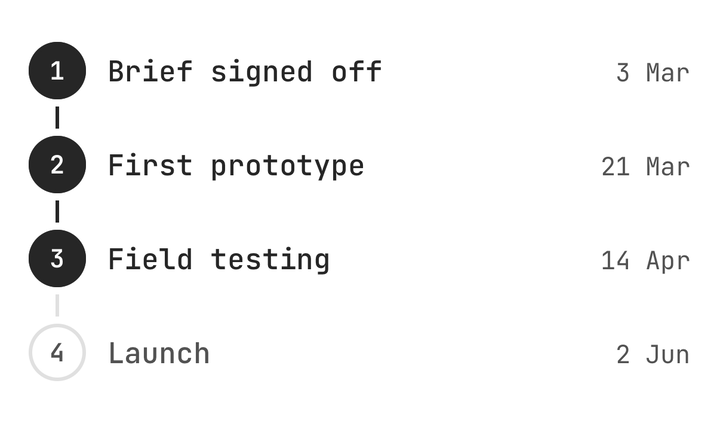
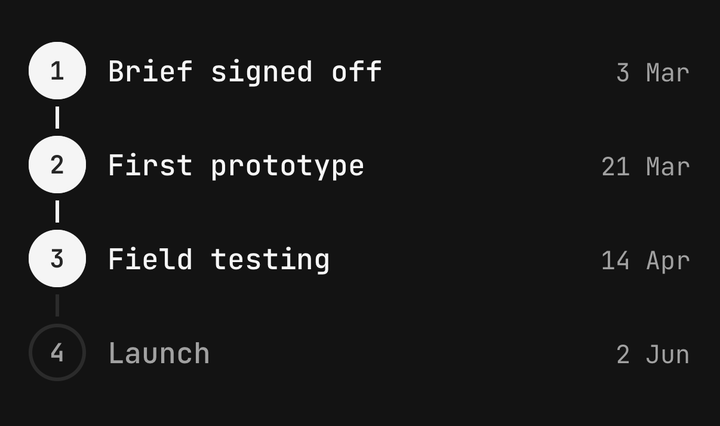
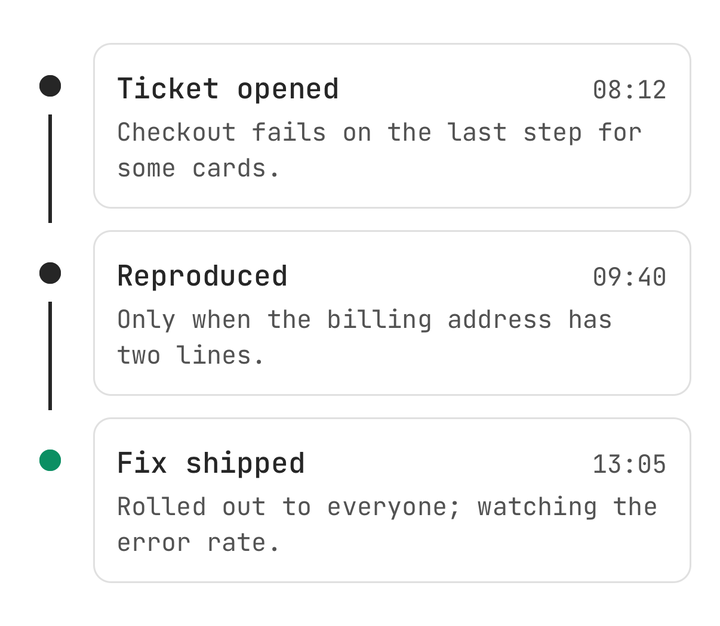
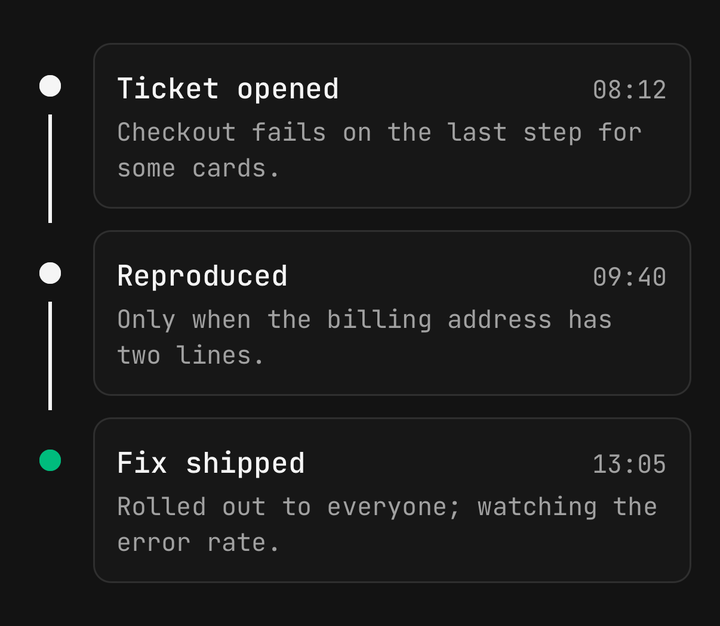
<Timeline value={2} variant="icon">
  <Timeline.Item step={0}>
    <Timeline.Indicator>
      <Icon icon={IconCreditCard1} />
    </Timeline.Indicator>
    <Timeline.Title>Paid</Timeline.Title>
  </Timeline.Item>
</Timeline>
Two sizes, sm and md, step the marker and the text together.
Side columns, masthead and stats
Timeline.Aside holds a left column beside a vertical event — a time of day — and
Timeline.Trailing a right one. Timeline.Masthead heads the sequence with a label, a title and
optional media, and Timeline.Stats sums an event up in a row of Timeline.Stats.
<Timeline value={1}>
  <Timeline.Masthead label="Final" title="Harbour 2 – 1 Northside" />
  <Timeline.Item step={0}>
    <Timeline.Aside>
      <Timeline.Date>45′</Timeline.Date>
    </Timeline.Aside>
    <Timeline.Title>Half time</Timeline.Title>
    <Timeline.Stats>
      <Timeline.Stat label="Shots" value="7 – 4" />
      <Timeline.Stat label="Possession" value="58%" />
    </Timeline.Stats>
  </Timeline.Item>
</Timeline>
Horizontal
orientation="horizontal" lays the events out as a swipeable strip of columns above the rail. The
reading edge is the strip's left content inset: onColumnChange fires once each time a new column
reaches it, haptic ticks a selection haptic at the same moment, and snap settles every fling with
a column on the edge. The column at the edge brings its title up from muted to foreground.
An item with no content collapses to a 24-point tick — a gap in time rather than an event.
<Timeline orientation="horizontal" value={3} snap haptic onColumnChange={setColumn}>
  <Timeline.Item step={0}>
    <Timeline.Title>Planted</Timeline.Title>
    <Timeline.Date>Sep</Timeline.Date>
  </Timeline.Item>
  <Timeline.Item step={1} />
  <Timeline.Item step={2}>
    <Timeline.Title>Flowering</Timeline.Title>
    <Timeline.Date>Dec</Timeline.Date>
  </Timeline.Item>
</Timeline>snap, haptic and onColumnChange exist only on a horizontal timeline — passing them to a
vertical one is a type error.
Long timelines
Timeline.List is the timeline and a FlatList at once. It counts its data and supplies each
item's step, last-ness and width, so renderItem returns a bare Timeline.Item. Horizontally,
itemWidth sizes the columns and is also the snap table and getItemLayout, so hundreds of columns
virtualise without one being measured.
<Timeline.List
  data={days}
  keyExtractor={(day) => day.id}
  orientation="horizontal"
  snap
  value={120}
  itemWidth={(day) => (day.title === null ? 24 : 140)}
  renderItem={({ item }) =>
    item.title === null ? (
      <Timeline.Item />
    ) : (
      <Timeline.Item>
        <Timeline.Title>{item.title}</Timeline.Title>
      </Timeline.Item>
    )
  }
/>
The root counts the Timeline.Items that are its direct children to leave the last one without a
trailing rail. Render them directly or from a .map() — an item behind a wrapper component is not
counted. For anything long, use Timeline.List.
Accessibility
- Each event is one VoiceOver stop: its marker, title, date and description merge, followed by a
value such as "Event 2 of 6, completed, success". The default tone is not read, and
destructiveis read as "error". - The marker, the rail and an empty column's tick are hidden — they restate what the value reads.
- The masthead is a header.
- A horizontal strip keeps every column individually reachable rather than acting as one adjustable control.
- Reduce motion snaps the reading-edge colour instead of animating it.
Reading the timeline's state
useTimeline() reads the root's value, count, orientation, variant and size; useTimelineItem()
reads one event's step, status, tone and whether it is last.
import { useTimeline, useTimelineItem } from "@delacour/react-native-ui/timeline";API Reference
Anatomy
| Part | What it is |
|---|---|
Timeline | Owns the value and the shared axes, and counts its items |
Timeline.Item | One event: its marker, the rail leaving it and its content |
Timeline.Indicator | The dot or circle. Composed in automatically; write it to give an icon event its glyph |
Timeline.Content | Groups an event's text — a surface under card |
Timeline.Header | Title and date on one line |
Timeline.Title / Date / Description / Meta | The event's text |
Timeline.Aside / Trailing | Left and right columns beside a vertical event |
Timeline.Masthead | A header above the first event |
Timeline.Stats / Stat | A row of labelled figures |
Timeline.List | The timeline over a FlatList's data |
Timeline
Extends ViewProps.
Prop
Type
Timeline.Item
Extends ViewProps.
Prop
Type
Timeline.List
Takes FlatList's props except horizontal and CellRendererComponent, plus value, variant,
size and the orientation props of Timeline.
Prop
Type
Timeline.Masthead
Prop
Type
Timeline.Stat
Prop
Type
Exports
import {
  Timeline,
  type TimelineProps,
  TIMELINE_TONES,
  TIMELINE_VARIANTS,
  TIMELINE_SIZES,
  TIMELINE_ORIENTATIONS,
  useTimeline,
  useTimelineItem,
} from "@delacour/react-native-ui/timeline";