Planner
A month of days, each showing what falls on it — category dots, icons, tiles or named blocks — with a sheet of the selected day.
Installation
Planner ships with the library — install it once, then import:
import { Planner } from "@delacour/react-native-ui/planner";Or copy the source into your project, to own and edit it:
bunx delacour@latest add plannerUsage
import { Planner, type PlannerCategory, type PlannerEntry } from "@/components/ui/planner";
import { IconStopwatch, IconWeight } from "@/lib/icons/central";
import { View } from "react-native";

const categories: PlannerCategory[] = [
  { id: "run", label: "Run", colorIndex: 1 },
  { id: "strength", label: "Strength", colorIndex: 2 },
];

const entries: PlannerEntry[] = [
  { id: "1", date: "2026-10-06", label: "Easy run", category: "run", icon: IconStopwatch },
  { id: "2", date: "2026-10-07", label: "Upper body", category: "strength", icon: IconWeight },
  { id: "3", date: "2026-10-10", label: "Long run", category: "run", icon: IconStopwatch },
];

export default function Example() {
  return (
    <View className="flex-1 justify-center p-4">
      <Planner categories={categories} entries={entries}>
        <Planner.Header>
          <Planner.Title />
          <Planner.Today />
          <Planner.Nav />
        </Planner.Header>
        <Planner.Grid />
        <Planner.Legend counts />
      </Planner>
    </View>
  );
}
Entries and categories
An entry is dated by its local calendar day; a category gives it a colour from the chart ramp, a legend row and a spoken group.
const categories: PlannerCategory[] = [
  { id: "run", label: "Run", colorIndex: 1 },
  { id: "launch", label: "Launch", color: "#EC4899" },
];

const entries: PlannerEntry[] = [
  { id: "a", date: "2026-10-14", label: "Tempo run", category: "run", icon: IconStopwatch },
  { id: "b", date: new Date(2026, 9, 14), label: "Launch film", category: "launch" },
];
Tiles
variant="tiles" draws one large icon per day, tinted by its first entry's category.
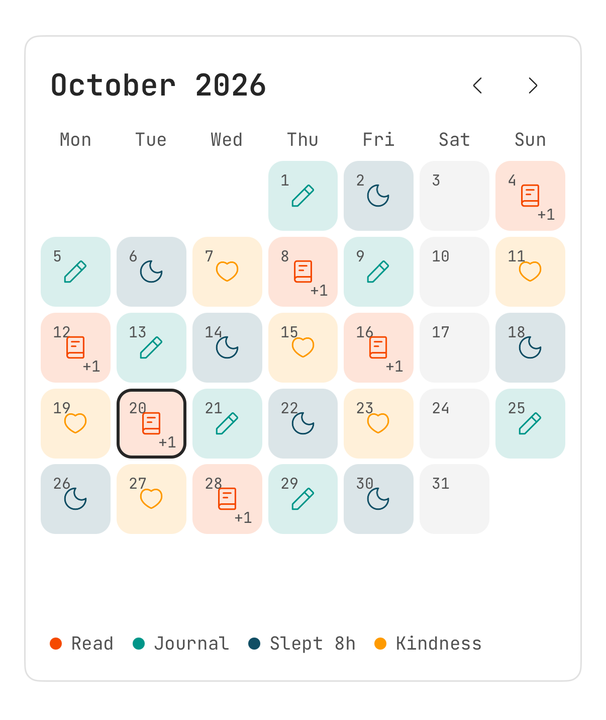
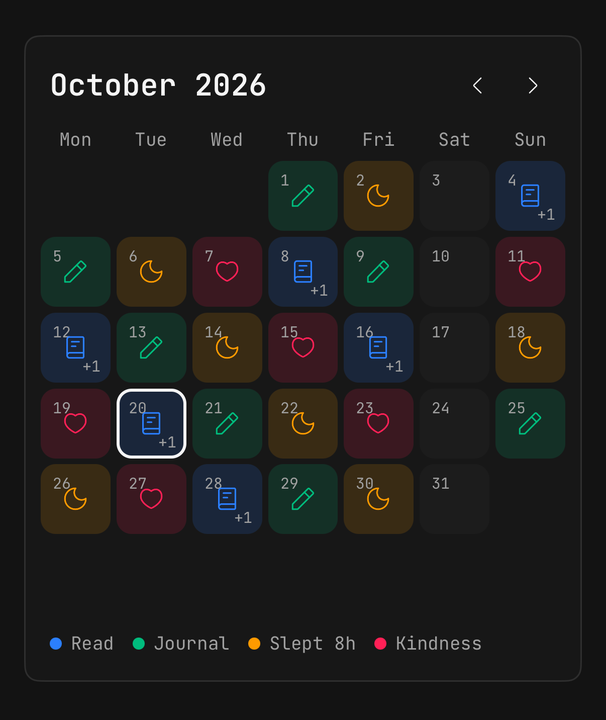
<Planner categories={categories} entries={entries} variant="tiles">…</Planner>Calendar
variant="calendar" names each entry in a block of its colour, and fill gives the weeks the height to show them.
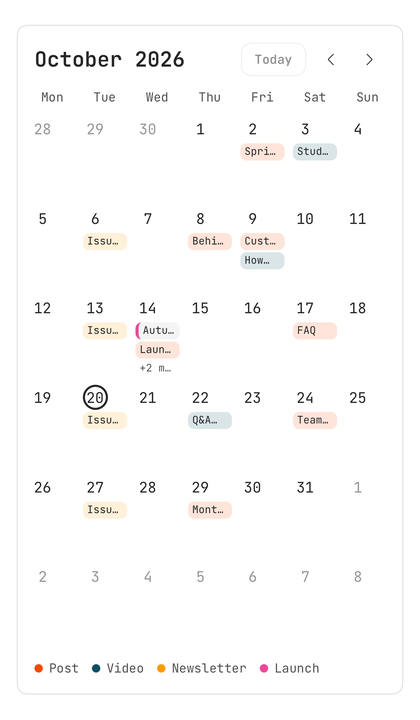
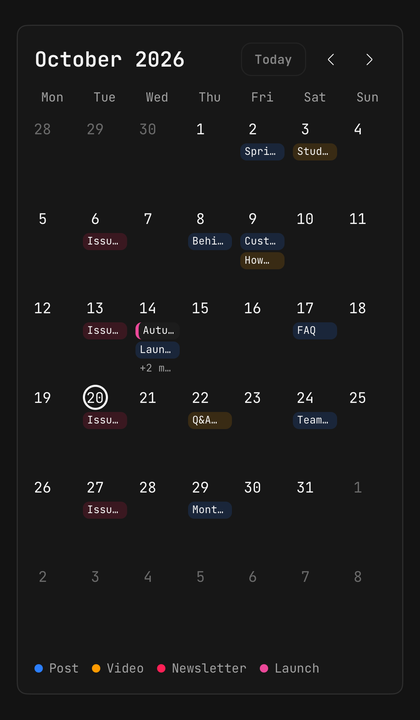
<View className="h-[640px]">
  <Planner entries={posts} fill variant="calendar">
    <Planner.Header>
      <Planner.Title />
      <Planner.Nav />
    </Planner.Header>
    <Planner.Grid />
  </Planner>
</View>
Day details
Planner.Details opens a bottom sheet while a day is selected, and closing it clears the selection.
<Planner entries={entries}>
  <Planner.Grid />
  <Planner.Details description={(date, dayEntries) => `${dayEntries.length} sessions`}>
    {(date, dayEntries) => <SessionList entries={dayEntries} />}
  </Planner.Details>
</Planner>
Planner.Details is a BottomSheet, so it opens nothing unless the app mounts BottomSheetProvider once at its root.
Pushing a screen instead
Leave Details out and use onDayPress, which fires before the day is selected.
<Planner entries={entries} onDayPress={(date) => router.push(`/day/${date.toDateString()}`)}>
  <Planner.Grid />
</Planner>
Scrolling weeks
Planner.Scroller is a virtualised list of weeks either side of the opening month, and the title follows the top week.
<Planner entries={shifts} fill variant="calendar">
  <Planner.Header>
    <Planner.Title />
    <Planner.Today />
    <Planner.Nav />
  </Planner.Header>
  <Planner.Scroller rowHeight={88} weeks={26} />
</Planner>
Custom days
renderDay draws the inside of each day; its button, spoken label and selection stay the planner's.
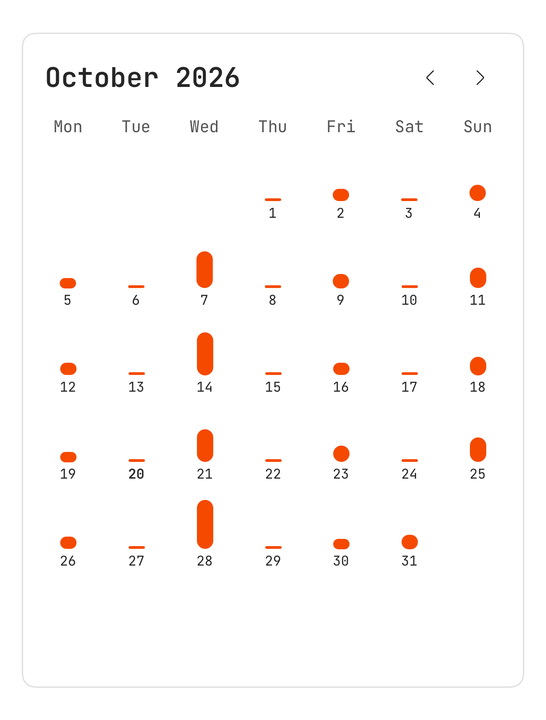
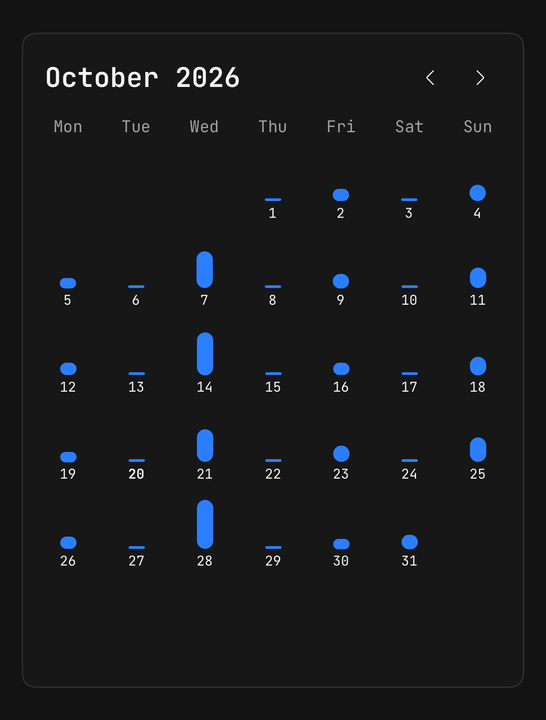
<Planner.Grid renderDay={({ date, entries, isToday }) => <DistanceDay date={date} entries={entries} isToday={isToday} />} />Controlled month
month and onMonthChange put the displayed month in your state.
const [month, setMonth] = useState(new Date());

<Planner month={month} onMonthChange={setMonth}>…</Planner>
Week start
weekStartsOn is "auto" by default, reading the locale and falling back to Monday.
<Planner locale="en-US" weekStartsOn={0}>…</Planner>Dates and time zones
Days are compared as local YYYY-MM-DD keys, never by timestamp, so a daylight-saving night never moves an entry to its neighbour.
A YYYY-MM-DD string is read as a local day. A full ISO timestamp is parsed by Date first, so "2026-10-14T23:30:00Z" lands on whichever day that instant is in the device's time zone.
Accessibility
Each day is one button, read as its date, entry count and categories, with today and the selection announced as state.
API Reference
Anatomy
| Part | What it is |
|---|---|
Planner | Owns the month, the selection and the entries; a Card unless isFramed={false} |
Planner.Header | The top row — the title, with controls pushed to the end |
Planner.Title | The displayed month's name |
Planner.Today | Back to the current month; disabled while it is shown |
Planner.Nav | Previous and next month |
Planner.Action | A ghost icon button for the header |
Planner.Grid | Six weeks of seven days; swipe to page |
Planner.Scroller | A virtualised list of weeks |
Planner.Day | One day's button, for a grid of your own |
Planner.Legend | Each category's colour, name and optional count |
Planner.Summary | The month's total, as a line inside Legend |
Planner.Footer | The last row, inset to match the header |
Planner.Details | A bottom sheet of the selected day |
Planner
Extends ViewProps.
Prop
Type
PlannerEntry
Prop
Type
PlannerCategory
Prop
Type
Planner.Grid
Extends ViewProps.
Prop
Type
Planner.Scroller
Prop
Type
Planner.Details
Prop
Type
Planner.Legend
Extends ViewProps.
Prop
Type
Planner.Nav
Extends ViewProps.
Prop
Type
Exports
import {
  Planner,
  type PlannerProps,
  type PlannerEntry,
  type PlannerCategory,
  type PlannerDayInfo,
  usePlanner,
  toDayKey,
} from "@delacour/react-native-ui/planner";