Grid Item
A bento grid of whole-cell tiles with aligned edges, and the tile with title, value and background parts.
Installation
GridItem ships with the library — install it once, then import:
import { GridItem } from "@delacour/react-native-ui/grid-item";Or copy the source into your project, to own and edit it:
bunx delacour@latest add grid-itemUsage
import { GridItem } from "@/components/ui/grid-item";
import { Icon } from "@/components/ui/icon";
import { IconBluetooth, IconStorage, IconWifiFull } from "@/lib/icons/central";
import { View } from "react-native";

export default function Example() {
  return (
    <View className="flex-1 justify-center p-4">
      <GridItem.Group columns={4} gap={12}>
        <GridItem colSpan={2} rowSpan={2} onPress={() => {}}>
          <GridItem.Media>
            <Icon icon={IconStorage} />
          </GridItem.Media>
          <GridItem.Title>Storage</GridItem.Title>
          <GridItem.Value>74 GB</GridItem.Value>
          <GridItem.Description>of 100 GB used</GridItem.Description>
        </GridItem>
        <GridItem size="sm">
          <GridItem.Media>
            <Icon icon={IconWifiFull} />
          </GridItem.Media>
          <GridItem.Title>Wi-Fi</GridItem.Title>
        </GridItem>
        <GridItem size="sm">
          <GridItem.Media>
            <Icon icon={IconBluetooth} />
          </GridItem.Media>
          <GridItem.Title>Bluetooth</GridItem.Title>
        </GridItem>
        <GridItem colSpan={2}>
          <GridItem.Title>Battery</GridItem.Title>
          <GridItem.Value>82%</GridItem.Value>
        </GridItem>
      </GridItem.Group>
    </View>
  );
}
Anatomy
<GridItem.Group>
  <GridItem>
    <GridItem.Background />
    <GridItem.Actions />
    <GridItem.Media />
    <GridItem.Title />
    <GridItem.Value />
    <GridItem.Description />
    <GridItem.Footer />
  </GridItem>
</GridItem.Group>
How cells work
The group measures its own width and divides it into columns tracks with a gap between them. A cell is
one track wide and, by default, as tall as it is wide. Each direct child takes colSpan by rowSpan
cells and is placed first-fit in the order it is written — never in a hole earlier than the tile before
it — so screen-reader order is writing order.
columns={4}
┌───────────┬─────┬─────┐
│           │ 1×1 │ 1×1 │
│    2×2    ├─────┼─────┤
│           │ 1×2 │ 1×1 │
├───────────┴──┐  ├─────┘
│      3×1      │  │
└───────────────┴──┘
Edges are snapped to the pixel grid, so neighbouring tiles never gain a hairline between them, and the group
is exactly as tall as the rows it used. Tiles are positioned on the logical start inset, so the grid
mirrors under right-to-left with no code of its own.
A tile wrapped in your own component loses its spans — the group reads colSpan and rowSpan from its
direct children's props. Accept them on the wrapper and pass them through. A direct child that is not a
GridItem is placed as 1×1, or by its own colSpan / rowSpan props.
Variants
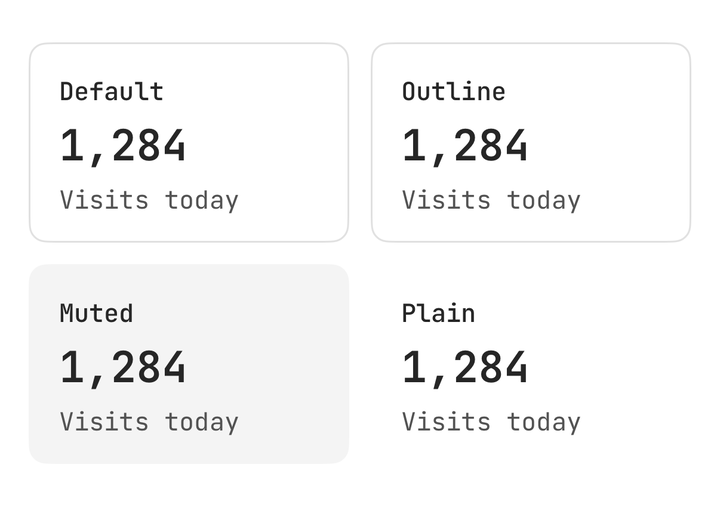
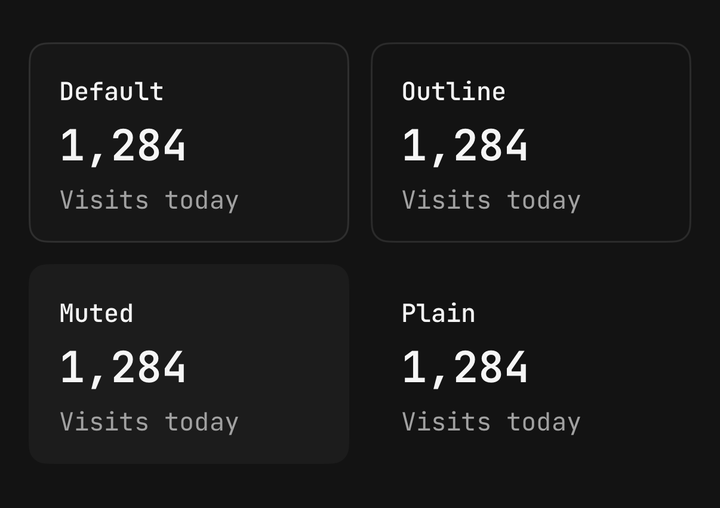
default is a card, outline a border, muted a fill and plain nothing. Every variant reserves the same
one-point border, so switching variant never moves the content. Set it once on the group, or per tile.
<GridItem.Group variant="muted">
  <GridItem variant="outline">…</GridItem>
</GridItem.Group>
Sizes
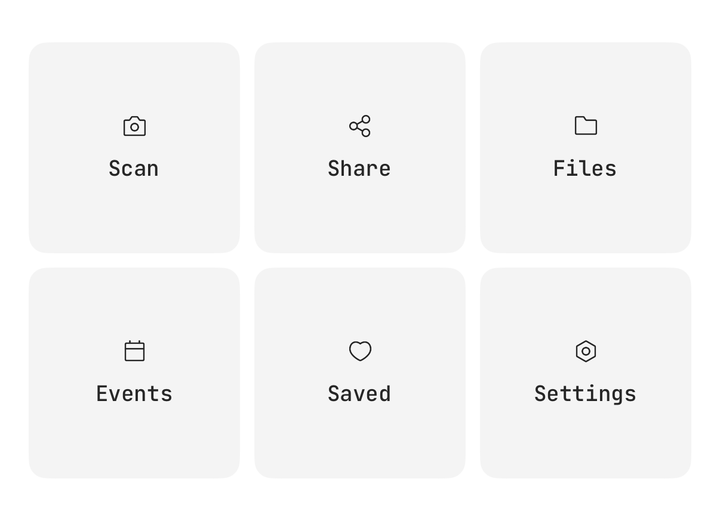
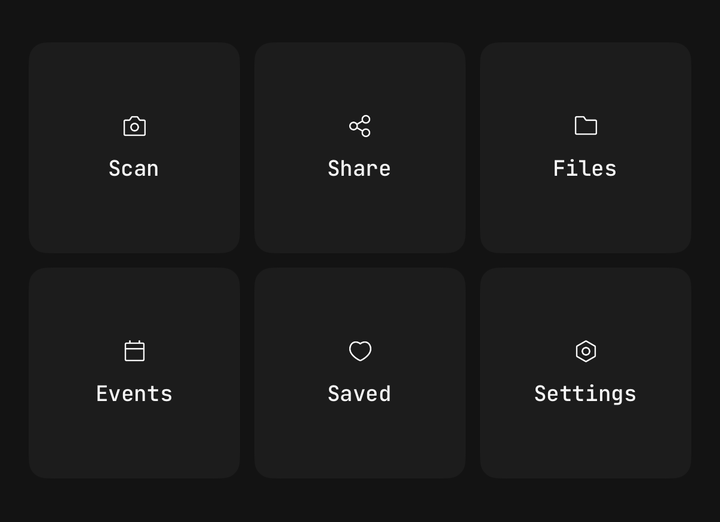
default and sm set the padding, the type scale and the media's icon size. A tile without its own takes
the group's.
<GridItem.Group size="sm">…</GridItem.Group>Pressable tiles
A tile with an onPress (or onLongPress) renders as a Pressable: it is announced as a button, scales
gently on press and passes haptic through. Without one it is a plain view. isDisabled dims the tile and
stops the press.
<GridItem haptic="selection" onPress={toggleLock}>
  <GridItem.Title>Front door</GridItem.Title>
  <GridItem.Description>{isLocked ? "Locked" : "Unlocked"}</GridItem.Description>
</GridItem>
Backgrounds
GridItem.Background fills the tile behind its content and clips to its corner — a chart, a gradient, an
oversized glyph. It is drawn first wherever it is written, and takes no touches, so a pressable tile stays
pressable across its whole face.
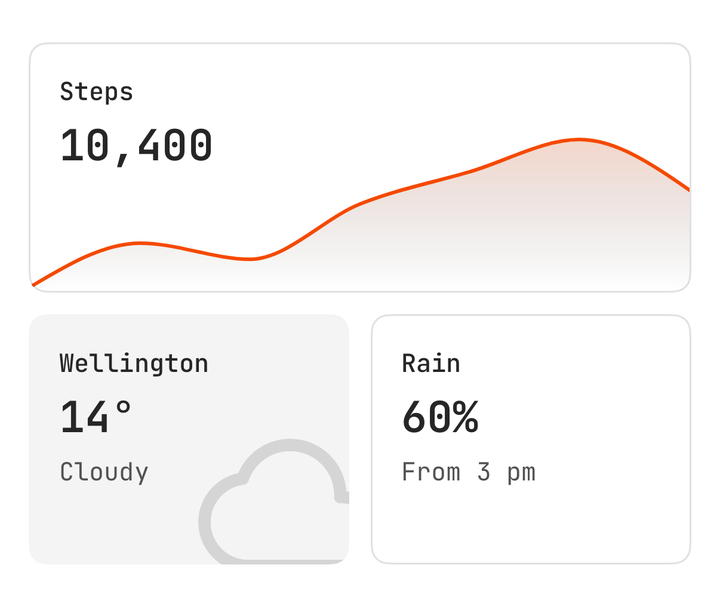
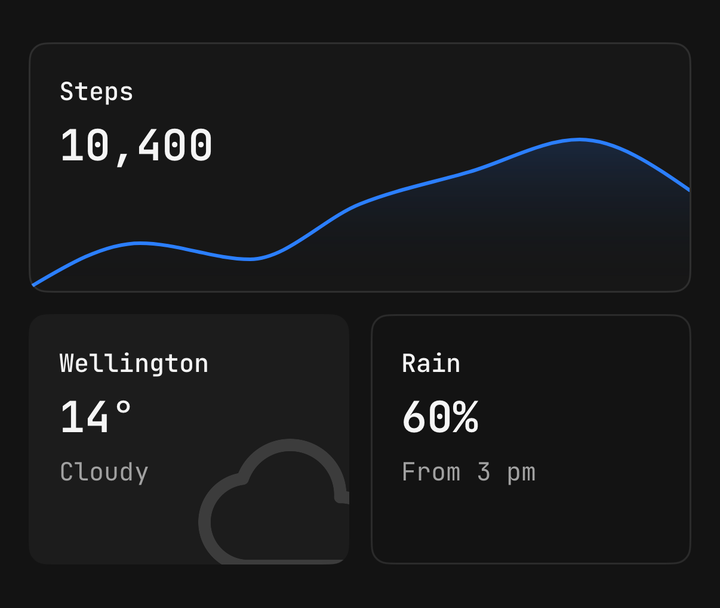
<GridItem colSpan={2}>
  <GridItem.Background className="top-1/3">
    <Chart className="flex-1" config={config} data={data} frameClassName="flex-1" xKey="day">
      <Chart.Area yKey="steps" />
    </Chart>
  </GridItem.Background>
  <GridItem.Title>Steps</GridItem.Title>
  <GridItem.Value>10,400</GridItem.Value>
</GridItem>
Row sizing
aspect makes a cell's height follow its width — 1 is square, 2 is twice as wide as tall — so the grid
keeps its shape at any column count. rowHeight fixes the height in points instead. Pass one or the other,
never both.
<GridItem.Group columns={3} aspect={1.5}>…</GridItem.Group>
<GridItem.Group columns={3} rowHeight={56}>…</GridItem.Group>
Before its first measure the group reserves its height — from rowHeight, or an aspect ratio — and keeps
its tiles invisible, so nothing jumps when they appear. A later change of width or column count glides
each tile to its new cell, and jumps instead under reduce motion.
Clipping and large text
Tile heights are whole cells, never content-sized: the grid knows its height before anything loads, so a
tile cannot push its neighbours. Content taller than its cell clips. At large text sizes give the rows more
room with rowHeight, or ask for fewer columns — useGridItemGroup() returns the measured cellHeight to
decide with.
const columns = PixelRatio.getFontScale() > 1.3 ? 2 : 4;GridItem, Item or Kpi
| GridItem | Item | Kpi | |
|---|---|---|---|
| Shape | A tile sized by its group's cells | A row: media, text, actions on one line | A free-standing card around one number |
| Sized by | The group | Its content | Its content |
| Use it for | Dashboards, quick actions, home screens | Lists and settings | One metric, its change and a sparkline |
A Kpi can sit inside a tile. For hundreds of uniform cells, reach for a list with numColumns: the group
is for tens of tiles on one screen and does not virtualise.
Accessibility
The group is a list. Each tile is one stop, labelled by joining its title, value and description, unless
you pass accessibilityLabel — do that when a part holds elements rather than text. Media, backgrounds and
actions are not read.
API Reference
GridItem.Group
Extends React Native's ViewProps.
Prop
Type
GridItem
Extends Pressable's props.
Prop
Type
GridItem.Background
Extends ViewProps. Absolute-fill, behind the content, no touches.
GridItem.Media
Extends ViewProps. Icons inside inherit the tile's icon size and foreground colour.
GridItem.Title, GridItem.Value, GridItem.Description
Extend TextProps. Each carries its own colour and scale; their text joins the tile's accessibility label.
GridItem.Footer
Extends ViewProps. Pushed to the bottom of the tile.
GridItem.Actions
Extends ViewProps. Pinned to the tile's top-end corner.
useGridItem
Prop
Type
useGridItemGroup
Prop
Type