Message
A chat bubble with direction, run-aware corners, delivery status, reactions and an avatar gutter.
Installation
Message ships with the library — install it once, then import:
import { Message } from "@delacour/react-native-ui/message";Or copy the source into your project, to own and edit it:
bunx delacour@latest add messageUsage
import { Avatar } from "@/components/ui/avatar";
import { Message } from "@/components/ui/message";
import { View } from "react-native";

const sentAt = new Date();

export default function Example() {
  return (
    <View className="flex-1 justify-center p-4">
      <Message direction="incoming">
        <Message.Avatar>
          <Avatar name="Aria Whitlock" size="sm" />
        </Message.Avatar>
        <Message.Header>
          <Message.Author>Aria</Message.Author>
          <Message.Timestamp date={sentAt} />
        </Message.Header>
        <Message.Bubble>
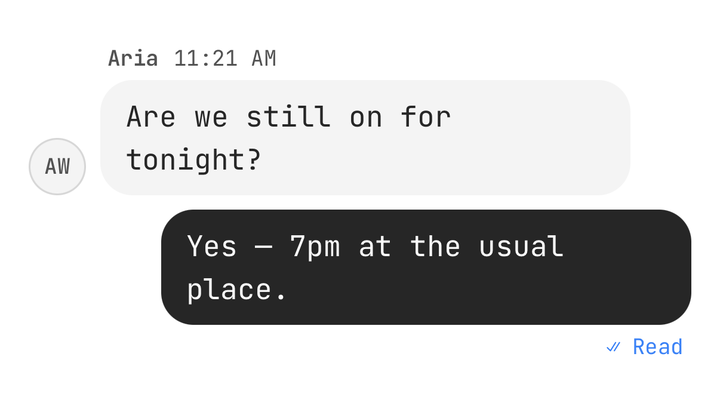
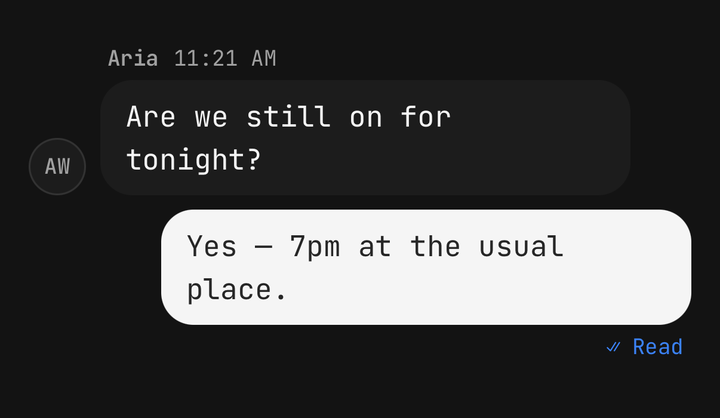
          <Message.Text>Are we still on for tonight?</Message.Text>
        </Message.Bubble>
      </Message>
      <Message direction="outgoing" status={{ type: "read" }}>
        <Message.Bubble>
          <Message.Text>Yes — 7pm at the usual place.</Message.Text>
        </Message.Bubble>
        <Message.Status />
      </Message>
    </View>
  );
}
Direction
direction is required. Incoming sits at the start on muted; outgoing sits at the end on
primary. tone="accent" moves an incoming bubble to secondary.
<Message direction="incoming">…</Message>
<Message direction="outgoing">…</Message>
<Message direction="incoming" tone="accent">…</Message>
Runs and position
Consecutive messages from one sender form a run. The message never looks at its neighbours —
the list computes position and passes it, and the corners that face a neighbour tighten so the
run reads as one stack. The gap below follows too: tight inside a run, a breath after it.
function positionOf(messages: Item[], index: number): MessagePosition {
  const sender = messages[index].sender;
  const joinsAbove = messages[index - 1]?.sender === sender;
  const joinsBelow = messages[index + 1]?.sender === sender;
  if (joinsAbove && joinsBelow) return "middle";
  if (joinsAbove) return "last";
  if (joinsBelow) return "first";
  return "single";
}
Corners are logical, so a run mirrors under a right-to-left layout with nothing else said.
Status
status is the delivery receipt of an outgoing message, drawn by Message.Status under the last
bubble of a run and nowhere else. sending dims the bubble, read turns the ticks to info, and
failed edges the bubble in destructive. With onRetry, a failed receipt carries a Retry
control.
<Message direction="outgoing" status={{ type: "sending" }}>…</Message>
<Message direction="outgoing" status={{ type: "read", readAt }}>…</Message>
<Message direction="outgoing" status={{ type: "failed", reason: "No connection" }} onRetry={resend}>
  <Message.Bubble>…</Message.Bubble>
  <Message.Status />
</Message>
Avatar gutter
Message.Avatar takes an Avatar, or anything, as children. It draws them beside the last
incoming bubble of a run and an empty gutter of the same width beside the rest, so the run stays
aligned. The gutter is an Avatar at size="sm".
Attachments and reactions
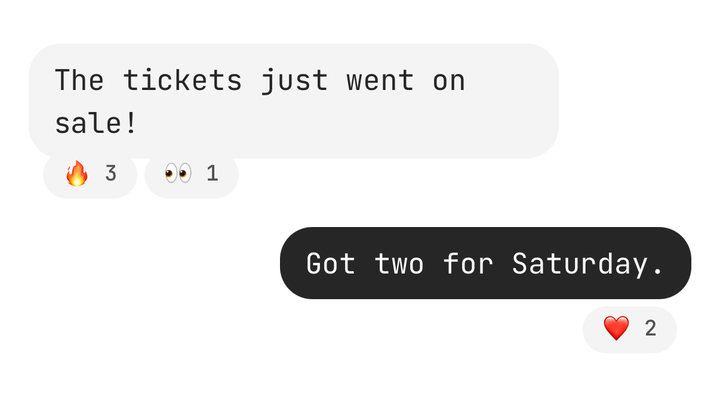
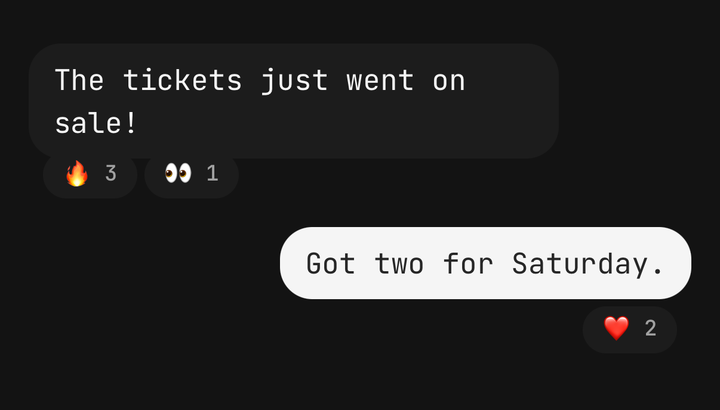
Both are slots. Message.Attachments is a clipped stack for media and file tiles; mark the bubble
isMedia when that is all it holds and the media fills it edge to edge. Message.Reactions takes
chips, hung over the bubble's edge or on a line below.
<Message.Bubble isMedia>
  <Message.Attachments>
    <Image source={photo} className="h-40 w-56" />
  </Message.Attachments>
</Message.Bubble>
<Message.Reactions placement="below">
  <Chip key="heart" size="sm">❤️ 2</Chip>
</Message.Reactions>
Typing
Message.Typing stands in for the bubble while the other side types: three staggered dots,
read as "Aria is typing". Under reduce motion the dots rest.
<Message direction="incoming">
  <Message.Header>
    <Message.Author>Aria</Message.Author>
  </Message.Header>
  <Message.Typing />
</Message>
Long press and actions
There is no hover toolbar on a phone. onLongPress opens whatever menu the app hosts, and
isSelected highlights the row while it is open. Message.Actions is a row for controls under
the bubble.
<Message direction="incoming" isSelected={menuOpen} onLongPress={openMenu}>
  …
</Message>
Emoji only
isEmojiOnly(text) is exported for the app to decide; the component never guesses. A short emoji
reply is usually drawn large with no fill:
<Message direction="outgoing" size="lg" tone={isEmojiOnly(text) ? "plain" : "default"}>
  …
</Message>
Accessibility
- One element per message. The parts report their words and the root reads them as one label:
"Aria, 9:41 AM, Are we still on for tonight?". Your own last message adds its receipt.
accessibilityLabelreplaces it. - Gestures are actions.
onLongPressis offered as a "More actions" action andonRetryas "Retry", so neither needs a gesture. - Only failure is announced. A turn into
failedis spoken once; sent, delivered and read are not. isCompoundkeeps the parts separate, for a message that holds a control of its own — a link, a pressable attachment or buttons inMessage.Actions.
API Reference
Message
Prop
Type
Message.Bubble
Prop
Type
Message.Author
Prop
Type
Message.Timestamp
Prop
Type
Message.Status
Prop
Type
Message.Reactions
Prop
Type
Message.Text
Text props, minus variant and color — the bubble owns the colour and the message the size.
Message.Avatar / Header / Attachments / Actions
Prop
Type
Message.Typing
Prop
Type
useMessage
Returns the enclosing message's direction, position, status, tone, size, isOutgoing,
isInteractive and isSelected, so a custom part can match it. Throws outside a <Message>.