ScrollFade
A gradient at a scrollable's edges while content runs past them, so rows read as passing under the edge rather than being cut — on either axis.
Installation
ScrollFade ships with the library — install it once, then import:
import { ScrollFade } from "@delacour/react-native-ui/scroll-fade";Or copy the source into your project, to own and edit it:
bunx delacour@latest add scroll-fadeUsage
import { useScrollSource } from "@/hooks/use-scroll-source";
import { ScrollFade } from "@/components/ui/scroll-fade";
import { Text } from "@/components/ui/text";
import { View } from "react-native";
import Animated from "react-native-reanimated";

const DAYS = ["Mon", "Tue", "Wed", "Thu", "Fri", "Sat", "Sun"];

export default function DayStrip() {
  const { source, scrollProps } = useScrollSource({ orientation: "horizontal" });

  return (
    <ScrollFade scrollSource={source} size={40}>
      <Animated.ScrollView
        contentContainerClassName="gap-3 px-4"
        horizontal
        showsHorizontalScrollIndicator={false}
        {...scrollProps}
      >
        {DAYS.map((day) => (
          <View className="h-28 w-28 items-center justify-center rounded-xl bg-secondary" key={day}>
            <Text.Label>{day}</Text.Label>
          </View>
        ))}
      </Animated.ScrollView>
    </ScrollFade>
  );
}
ScrollFade overlays the scrollable; it never wraps it or touches its props. The scrollable reports
its offset and sizes through the props useScrollSource returns, and the fade reads them on the UI
thread — a scroll renders nothing in React.
Inside a Screen
A Screen publishes its own body as a scroll source, so a fade inside one needs no wiring at all.
Give it flex-1 so it fills the body.
<Screen>
  <ScrollFade className="flex-1">
    <Screen.ScrollArea>{rows}</Screen.ScrollArea>
  </ScrollFade>
</Screen>
useScrollSource
Use it for any scrollable that is not a Screen body — a card row, a list in a Card, a sheet body,
a chip strip. Spread scrollProps onto an Animated.ScrollView, Animated.FlatList or similar.
The axis is the source's, fixed when you create it, so ScrollFade has no orientation prop to
disagree with it.
const { source, scrollProps } = useScrollSource();                             // vertical
const { source, scrollProps } = useScrollSource({ orientation: "horizontal" }); // a row
ScrollSourceProvider shares one source with everything beneath it, so a fade several components
down can find it without a prop.
Name the surface
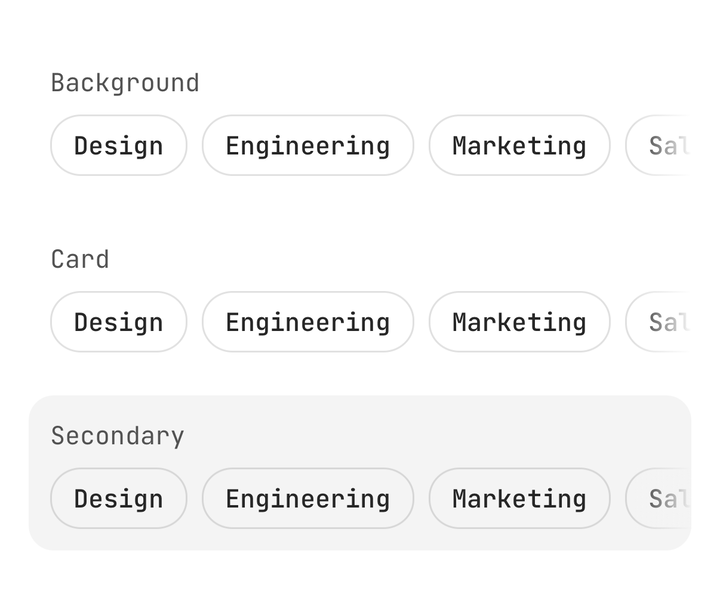
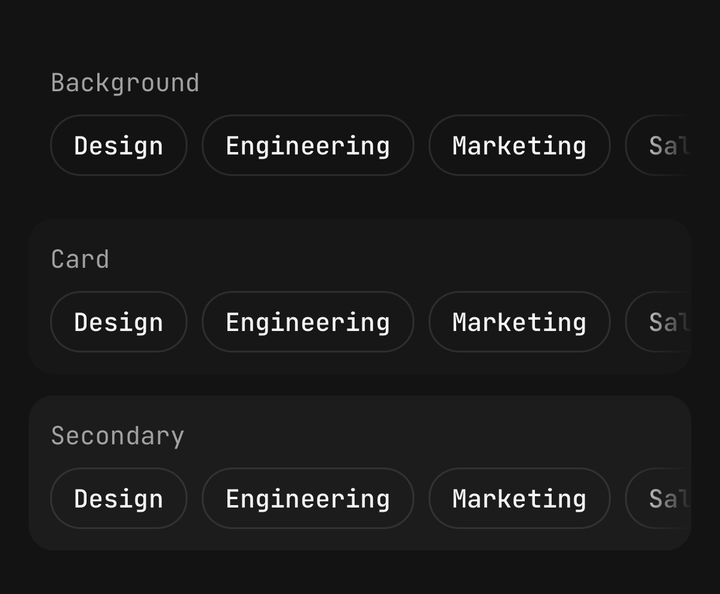
The fade is a colour, not a mask. Over a card, pass the card's colour; the default background over
a card reads as a grey band. color takes a theme token or a literal.
<ScrollFade color="card" scrollSource={source}>
  <Animated.ScrollView {...scrollProps}>{rows}</Animated.ScrollView>
</ScrollFade>
Edges and distance
edges picks which ends fade. fadeInDistance is how many points of travel an edge takes to arrive —
0 makes it a step — and is separate from size, the depth of the band. insetStart / insetEnd
hold a band in from its edge, under a bar the fade cannot see.
<ScrollFade edges="end" scrollSource={source} />
<ScrollFade fadeInDistance={0} scrollSource={source} />
<ScrollFade insetStart={56} scrollSource={source} />
Over a keyboard
A keyboard covers the scrollable without resizing it, so the end fade would sit under it.
keyboardAware lifts the end fade above an open keyboard, by the same distance a sticky
Screen.Footer moves, and measures the end against the part of the scrollable still visible.
Use it over a keyboard-aware Screen.ScrollArea with a footer that rides the keyboard.
<Screen>
  <ScrollFade className="flex-1" edges="end" keyboardAware>
    <Screen.ScrollArea keyboardAware>{form}</Screen.ScrollArea>
  </ScrollFade>
  <Screen.Footer placement="static" sticky>
    <Button>Continue</Button>
  </Screen.Footer>
</Screen>
ScrollFade or Screen.ScrollShadow
| ScrollFade | Screen.ScrollShadow | |
|---|---|---|
| Where | Any scrollable, any container | A Screen body |
| Axis | Vertical or horizontal | Vertical |
| Aware of the navbar and footer | No — use insetStart / insetEnd | Yes, it measures them |
| Solid cover bands | No | coverTop / coverBottom |
Accessibility
The bands are purely visual: pointerEvents="none", hidden from assistive technology, and the
wrapper adds nothing to the accessibility tree. The opacity follows the user's own finger and
nothing moves on its own, so there is nothing for reduce motion to still.
Notes
- An edge is drawn only while there is content past it. A list too short to scroll draws neither.
- Before a source has measured anything the end edge is drawn: a
Screenlearns its sizes from the first scroll event, and a tall body should show its end fade at rest.useScrollSourcemeasures on layout, so a short list loses the end fade within a frame. startandendfollow the scroll axis in layout space; they do not flip under right-to-left.- A
Screennested inside another reports to the outer one, so a fade over a nested Screen's body follows the outer scrollable. Pass ascrollSourcethere.
API Reference
ScrollFadeProps
Extends React Native's ViewProps, without pointerEvents.
Prop
Type
useScrollSource
Prop
Type