Compare
Two layers of one frame with a seam you drag across — before and after, revealed rather than resized.
Installation
Compare ships with the library — install it once, then import:
import { Compare } from "@delacour/react-native-ui/compare";Or copy the source into your project, to own and edit it:
bunx delacour@latest add compareUsage
import { Compare } from "@/components/ui/compare";
import { Image, View } from "react-native";

const original = { uri: "https://example.com/harbour-original.jpg" };
const retouched = { uri: "https://example.com/harbour-retouched.jpg" };

export default function Example() {
  return (
    <View className="flex-1 justify-center p-4">
      <Compare accessibilityLabel="Retouch" className="aspect-[4/3]">
        <Compare.Before>
          <Image accessibilityLabel="Original photo" className="size-full" source={original} />
        </Compare.Before>
        <Compare.After>
          <Image accessibilityLabel="Retouched photo" className="size-full" source={retouched} />
        </Compare.After>
        <Compare.Label side="before">Original</Compare.Label>
        <Compare.Label side="after">Retouched</Compare.Label>
        <Compare.Handle />
      </Compare>
    </View>
  );
}
Compare.Before sits on the leading side — left, top when vertical, right under RTL — and
Compare.After fills the frame behind it. A position of 1 shows only Before, 0 only After.
Both layers are laid out once, at the full frame size, and only a mask moves. The halves stay in register at every position: an image is revealed, never squashed, and text never reflows.
The frame has no size of its own
Give className an aspect-* or an h-*. Without one the frame collapses to nothing.
Themes
Each side takes any children — not only images. One Card under a light and a dark
ScopedTheme is the realistic case: the seam cuts one card in half.
import { ScopedTheme } from "uniwind";

<Compare accessibilityLabel="Light and dark theme" className="h-64">
  <Compare.Before>
    <ScopedTheme theme="light">
      <ReportCard />
    </ScopedTheme>
  </Compare.Before>
  <Compare.After>
    <ScopedTheme theme="dark">
      <ReportCard />
    </ScopedTheme>
  </Compare.After>
  <Compare.Handle />
</Compare>
Vertical
<Compare accessibilityLabel="Sky" className="h-72" orientation="vertical">
  …
</Compare>
A vertical comparison needs a definite height
It fills the height it is given, so the frame needs an h-* — an aspect ratio alone is measured from
a width a vertical frame does not drag across.
Colours and sizes
color paints the divider and the grip capsule; the glyph takes that colour's foreground. size
moves the capsule only — the handle's touch band is 44pt at every size.
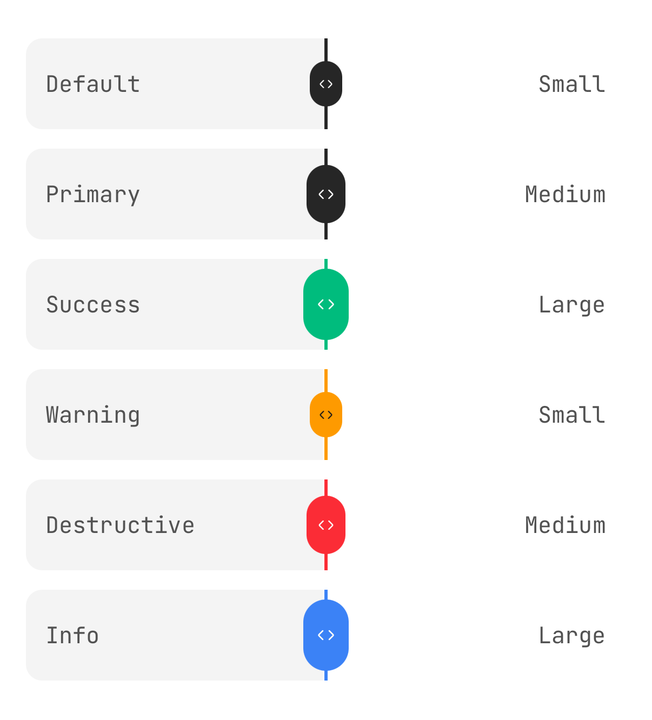
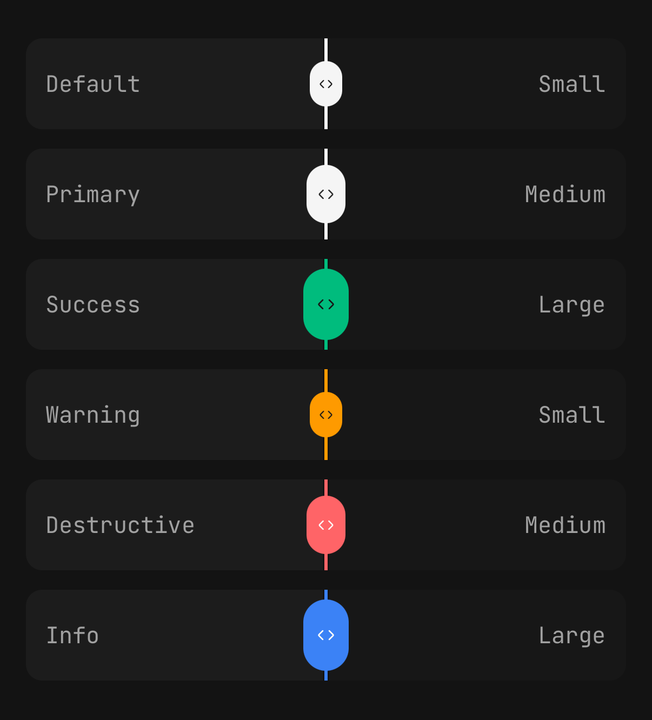
<Compare color="default" size="sm" />
<Compare color="primary" size="md" />
<Compare color="success" size="lg" />
<Compare color="warning" />
<Compare color="destructive" />
<Compare color="info" />
Snap points
A release within snapThreshold of a point in snapPoints lands on it, with a haptic tick.
Snapping waits for the release; a seam that snapped mid-drag would feel sticky.
<Compare snapPoints={[0, 0.5, 1]} snapThreshold={0.08} onPositionChangeEnd={save}>
  …
</Compare>
Controlled
const [position, setPosition] = useState(0.5);

<Compare position={position} onPositionChange={setPosition} onPositionChangeEnd={persist}>
  …
</Compare>
onPositionChange follows the drag at percent resolution. onPositionChangeEnd fires once, after
the snap — that is where a network write belongs. A parent that refuses a value leaves position
unchanged and the seam springs back to it.
Inside a scroll view
With the default grab="handle", only the handle's 44pt band claims a touch. A vertical flick
anywhere else on the frame scrolls the list.
grab="anywhere" lets a drag start anywhere on the frame and a tap jump the seam. Activation is
axis-aware: a drag along the seam's axis takes the touch, a flick across it goes to the scroll view.
<ScrollView delaysContentTouches={false}>
  <Compare grab="anywhere" accessibilityLabel="Exposure" className="aspect-[4/3]">…</Compare>
</ScrollView>
On iOS the handle feels late until the scrollable sets delaysContentTouches={false}. That is a
prop at your call site, not something the component can set.
Accessibility
- The handle is an
adjustable— the frame is not, so each layer's content stays reachable on its own. Label your images. - Its value reads the Before layer's share: "50 percent before", or "Showing only after" at an end.
A plain-string
Compare.Labelsubstitutes its text — "50 percent Original" — and is itself hidden from screen readers, so the name is heard once. - A VoiceOver or TalkBack swipe steps the seam by
step(default0.1), through the same snap and bounds as a drag, and firesonPositionChangeEnd. - Name it with
accessibilityLabel, or wrap it in aFieldand theField.Labelnames it. With neither, a development warning fires. - A layer the seam covers completely leaves the accessibility tree, so nothing invisible is focusable.
- Under reduce motion the release does not spring; the drag itself still follows the finger.
API Reference
Anatomy
| Part | What it is |
|---|---|
Compare | The frame. Owns the position, the gesture and the axes |
Compare.Before | The front layer, on the leading side, revealed by a sliding mask |
Compare.After | The back layer: the full frame, never moved |
Compare.Handle | The divider, the grip and the whole accessibility surface |
Compare.Label | A caption pinned to one side, fading as that side is covered |
Compare
Prop
Type
Compare.Before / Compare.After
Prop
Type
Compare.Handle
Prop
Type
Compare.Label
Prop
Type
useCompare
Reads the enclosing comparison's state — the live position shared value, the frame size and the
axes — for a custom handle or overlay that has to follow the seam. Throws outside a Compare.